Free Resources



Launching Applications in Windows
Starting programs is just one of the many tasks you can simplify with the X-keys. Here are two proven methods for launching Windows applications from your keyboard or your X-keys.
Create a Shortcut Key
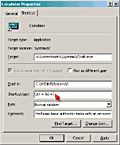
- On your Windows Desktop, Right Click on the program's icon.
- Select the “Properties” option.
- Click on the “Shortcut” tab.
- Click in the “Shortcut Key” window.
- Type your shortcut key combination or a single key on your keyboard.
- Click the “OK” button.
If you type a single key, Windows adds the Ctrl+Alt combination to your selection. The key combination Ctrl+Alt+(your key) can now be programmed into the X-keys to launch the application.
Note: If you try to program this shortcut in X-keys Macro Maker after assigning it, Windows will intercept the shortcut before Macro Maker can read all of it. The solution is to either program the shortcut combo in Macro Maker before assigning it to the application, or to edit the macro in Macro Maker, adding the missing keystroke to the shortcut.
Use Windows “Run” Command
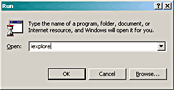
Program your X-keys to send the “Win Key+R” combination to open Windows Run command, followed by the name of the application you want to launch. For example, “Win Key+R iexplore ENTER” will launch Internet Explorer. For greater reliability, insert a pause between the “Win Key+R” combination and the file name to allow the run command window to open.
To insert a pause in Macro Maker, select the key, select Create/Edit Macro, click on the line of the macro before you want the pause (for example on the “r[up]” line) and click on the “Insert Pause” button. A 0.5 second pause is inserted, but you may adjust the length of the pause by clicking on the pause code and using the “delay”setting.
To insert a pause with an X-keys PS/2 device or an X-keys USB device in Memory Resident Mode, use the Special Programming combination “Esc+5” as you are programming the key sequence. A 0.5 second pause is inserted each time the combination is entered.
Accessories | Developer´s Corner | Resources | Support
Shopping Cart | Checkout | Privacy Policy | Site Map
X-keys, Y-mouse, RailDriver and The No Slogan Company are Trademarks of P.I. Engineering, Inc.
Copyright © 2006 P.I. Engineering, Inc. All Rights Reserved.
101 Innovation Parkway
Williamston, MI U.S.A. 48895
1-517-655-5523
FAX: 1-517-655-4926
www.piengineering.com | www.xkeys.com | www.ymouse.com | www.raildriver.com
Visit Our New Divisions: