Free Resources



Tool Presets and Actions in Photoshop 7
How to Create a Shortcut to a Specific Tool with PhotoShop 7 Actions and Tie it to a Specific Key on the X-keys
- This editorial tutorial describes the following four steps in detail for PhotoShop 7 (the steps are similar for PhotoShop 6 and are summarized at the end of this article):
- Save a tool and settings to the Tool Preset Palette
- Create a new Action set
- Create an Action to select your Tool Preset
- Program the Action shortcut to a key on the X-keys
For as long as I've been using PhotoShop it has bothered me that I couldn't get to a specific tool with specific settings via keyboard shortcut and therefore via my X-keys. Sure you can bounce back to the brush with the “B” key or the Marquee Tool with the “M” key, but, damn it, I don't want to hit “B”, pull down the Brush Size menu, double click in the Size Field, type “4”, close the menu, and make sure I have the foreground color set to black before I can draw. I want a 4 pixel black pencil and I want it now!
So follow me as I navigate the jungle of help files. Let’s see what it takes to make a preset for a tool with specific settings and create a shortcut key for it.
How to save a tool with the Tool Preset Palette.
The what? Before I started working on this, I'd never used the Tool Preset Palette. It was just one of those five thousand pull down menus I was always opening by mistake.
As with many things in Photoshop, there are multiple ways to get to the Tool Preset Palette. Here are two:
(1) A pull down menu "Tool Preset Picker" (TPP)on the left of the Options Bar.
(2) A tab on the History Palette.
It works like this.
Choose the tool and settings you wish to save. In this case I have the Pencil tool, set to 4 pixels, and black.
Click on the little Arrow button in the upper right corner of the TPP or the History Palette, and select “New Tool Preset.”
A window will pop up with a field for naming the preset. If the tool is a brush or pencil, an option is provided for saving the color with the preset. You can accept the name PhotoShop offers, or make up your own. You could use your friend's names, but It's easier to keep track of them if the name is relevant (and some of us don't have that many friends).
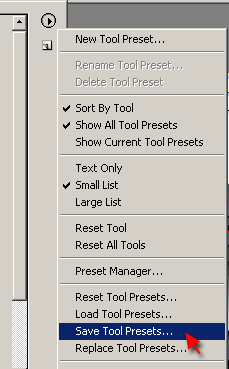
When you have finished defining your preset tools, use the TPP menu to Save Tool Presets. I recommend saving your new set under a unique name to distinguish it from your default tool presets. (I named mine after my favorite peripheral, “X-keys”).
So now you too can have a 40 pixel, Color Burn Mode, 42% Opacity, Magenta brush named Maggie in your TPP, but you still have to mouse away from the drawing to open the menu and get the tool, right? Not if you keep going.
Accessories | Developer´s Corner | Resources | Support
Shopping Cart | Checkout | Privacy Policy | Site Map
X-keys, Y-mouse, RailDriver and The No Slogan Company are Trademarks of P.I. Engineering, Inc.
Copyright © 2006 P.I. Engineering, Inc. All Rights Reserved.
101 Innovation Parkway
Williamston, MI U.S.A. 48895
1-517-655-5523
FAX: 1-517-655-4926
www.piengineering.com | www.xkeys.com | www.ymouse.com | www.raildriver.com
Visit Our New Divisions: